People photo background remover
Remove background from a person online
Create a person cutout for a profile image, presentation or social graphic. Preview the result on light and dark colors so hair and clothing edges are easier to inspect.
Make a transparent person cutout
Separate a person from a photo background and download a reusable PNG preview.
Free local preview. The first image model download can be large, then the browser can reuse its cache.
Sign in with processing credits to build a batch queue and download each result.
Uploading securely…
Check the edge before download
Review and download your images
Browser processing keeps the original image on your device. Server API processing uploads a JPG, PNG or BMP to the selected provider route. Start with a clear source image and inspect hair, glass, thin lines and low-contrast edges before using the result.
Compare original, transparent and custom backgrounds
Start with the kind of file you are preparing, then compare the three outcomes that matter: the source image, a transparent cutout and a ready-to-place custom background. For Separate a person from a photo background and download a reusable PNG preview., the edge is the part worth checking.
Clean portrait cutouts for profiles and presentations
Review hair, shoulders and clothing edges before placing a portrait on a profile, slide or social layout.
Remove a person photo background
 Soft profile color
 Prepare product photos for store listings
Check handles, packaging corners and light-colored products against both transparent and white previews.
Remove a product photo background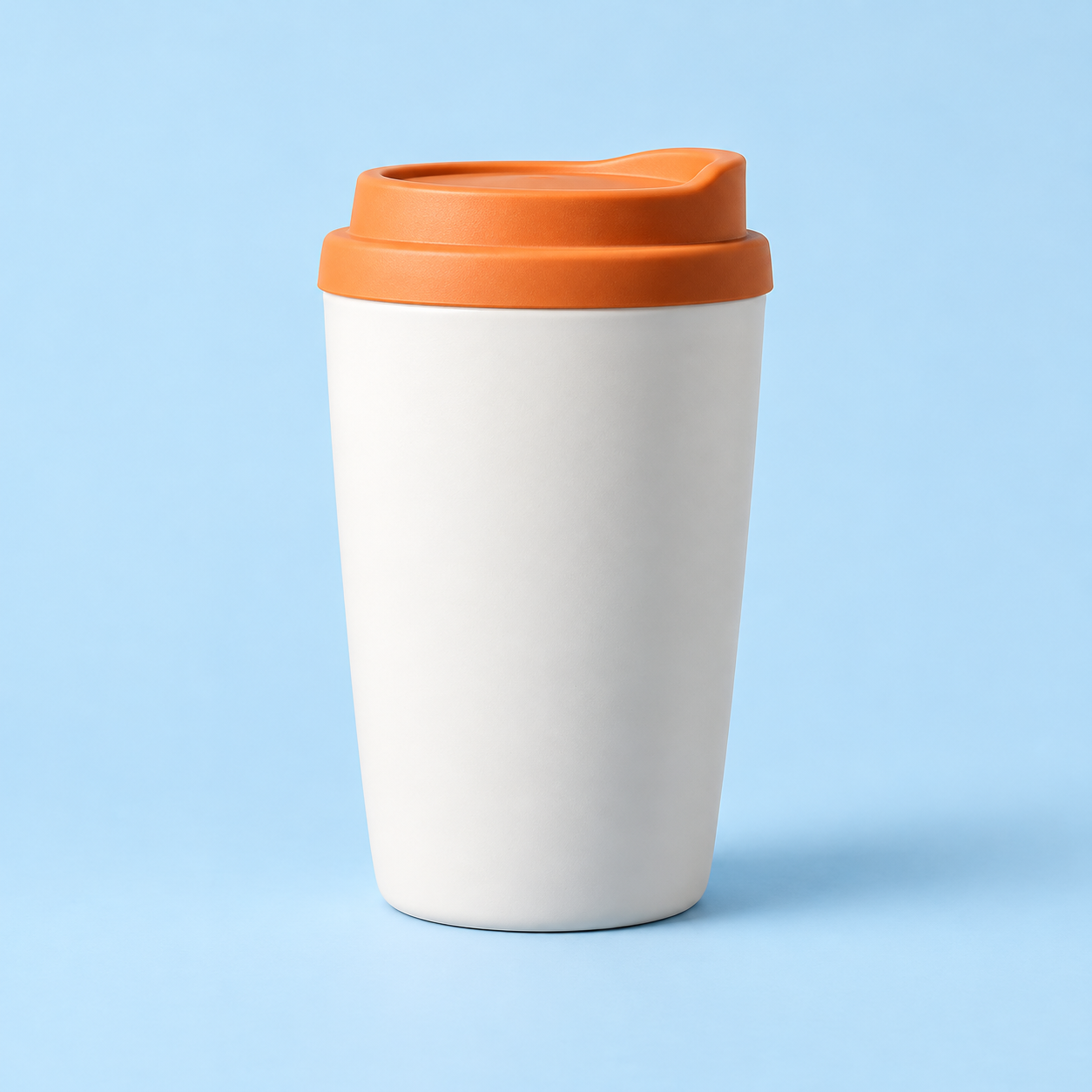
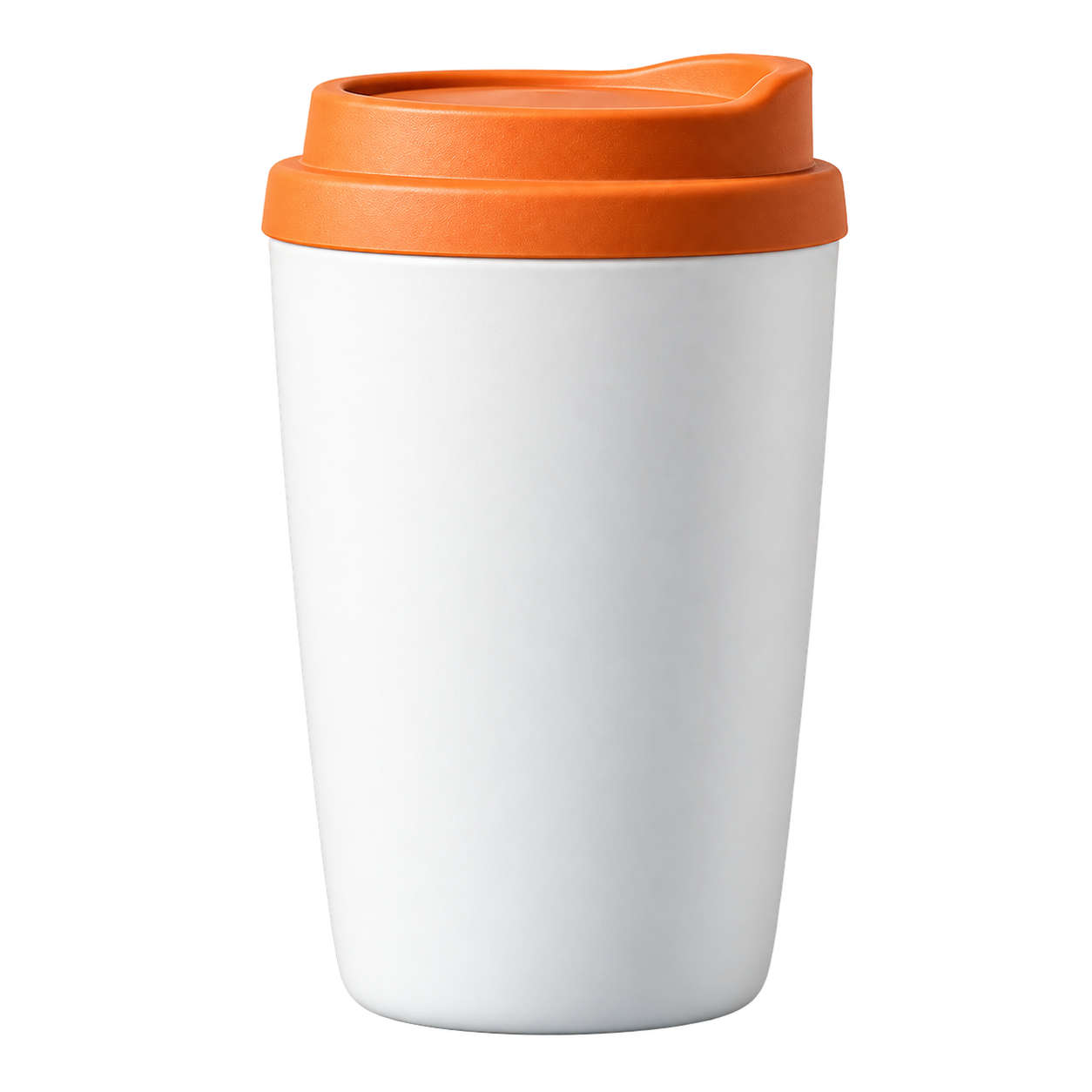 Catalog-ready color
 Keep fur and ears visible in pet cutouts
Use a contrasting preview background to inspect fur, whiskers and small gaps around the subject.
Remove a pet photo background
 Warm pet backdrop
 Make food images easier to reuse
Separate a dish or ingredient from the original scene for menus, posts and recipe layouts.
Remove a food photo background
 Menu-ready color
 Turn logo artwork into reusable transparent assets
Inspect letter edges, icons and thin marks before placing a logo on a new color or layout.
Remove a logo background
 Brand color
 Prepare the file, then review the result
Every page starts from the same practical decision: what are you preparing, what edge needs checking, and where will the exported copy go next?
- 01
Upload a clear JPG, PNG or WebP portrait.
- 02
Choose Browser processing for a local preview or Server API for provider delivery.
- 03
Use the comparison slider to find clipped hair, hands or clothing.
How to remove a person from a photo
Use the answer that matches the file you are preparing, then open the tool when you are ready to test it.
How to remove a person’s background
- Upload a clear JPG, PNG or WebP portrait.
- Choose Browser processing for a local preview or Server API for provider delivery.
- Use the comparison slider to find clipped hair, hands or clothing.
- Download a transparent PNG when the cutout is ready.
How to get a cleaner portrait cutout
Start with a sharp image where the person is not the same color as the background. Loose hair, motion blur, a busy crowd and overlapping people can make the edge harder to separate.
Can I use the cutout for a profile picture?
Yes, if the downloaded subject has the framing and edge you need. The tool removes the background; cropping, face placement and platform-specific dimensions still belong to the next step.
Frequently asked questions
Short answers about formats, privacy, output and edge quality.
Can I remove a person from the background without an editor?
You can upload a portrait, review the returned cutout, and download a PNG without opening a full image editor.
Will the tool remove multiple people?
The general image preview may work with more than one subject, but crowded or overlapping people need a close edge check.
How do I check hair after background removal?
Use the zoom control and switch between light, dark and checkerboard previews. Hair halos show up differently on each background.
Can I use this for a full-body portrait?
Yes, as long as the person is visible and separated from the scene. Check hands, shoes, loose hair and clothing edges closely.
How do I avoid cutting off a person at the shoulders?
Use a source with space around the subject, then compare the original and result at the shoulders and clothing outline before export.