For professional profile photos
LinkedIn profile photo background remover
Clean up a portrait background before preparing a LinkedIn profile image. Check the face, hair, shoulders and clothing edges, then crop the cutout for the profile layout you use.
Create a cleaner professional profile cutout
Remove the scene around a portrait while keeping a separate original and a reusable PNG copy.
Kostenlose lokale Vorschau. Der erste Modelldownload kann groß sein; danach kann der Browser den Cache wiederverwenden.
Melden Sie sich mit Verarbeitungsguthaben an, um eine Stapelwarteschlange zu erstellen und Ergebnisse herunterzuladen.
Sicherer Upload …
Kante vor dem Download prüfen
Bilder prüfen und herunterladen
Die Browser-Verarbeitung behält das Original auf Ihrem Gerät. Die Server-API lädt die ausgewählte Datei zur Verarbeitung hoch. Verwenden Sie eine klare Quelle und prüfen Sie Haare, Glas, dünne Linien und kontrastarme Kanten.
Original, Transparenz und eigene Hintergründe vergleichen
Wählen Sie den Dateityp, den Sie vorbereiten, und vergleichen Sie Quelle, transparenten Ausschnitt und einen sofort einsetzbaren Hintergrund. Für one portrait that needs a cleaner background, die Kante ist der wichtigste Prüfpunkt.
Saubere Porträtausschnitte für Profile und Präsentationen
Prüfen Sie Haare, Schultern und Kleidungskanten, bevor Sie das Porträt in Profilen, Folien oder Social-Layouts verwenden.
Hintergrund eines Personenfotos entfernen
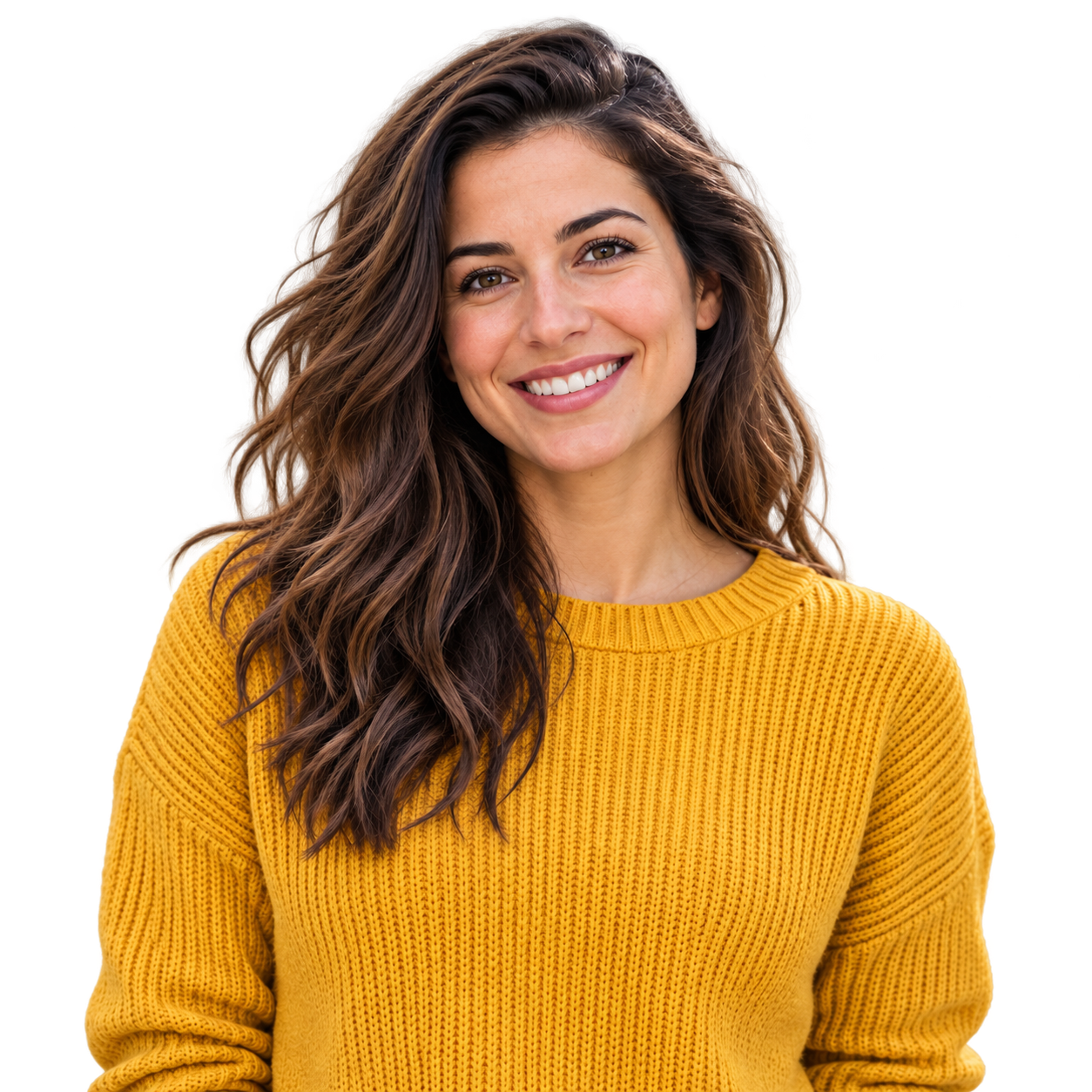 Sanfte Profilfarbe
Produktfotos für Shop-Angebote vorbereiten
Prüfen Sie Griffe, Verpackungsecken und helle Produkte auf transparenten und weißen Vorschauen.
Hintergrund eines Produktfotos entfernen
 Katalogfarbe
Fell und Ohren im Ausschnitt erhalten
Verwenden Sie einen kontrastreichen Hintergrund, um Fell, Schnurrhaare und kleine Lücken zu prüfen.
Hintergrund eines Tierfotos entfernen
 Warmer Tierhintergrund
Food-Bilder leichter wiederverwenden
Trennen Sie Gerichte oder Zutaten für Menüs, Posts und Rezeptlayouts vom ursprünglichen Hintergrund.
Hintergrund eines Food-Fotos entfernen
 Menüfarbe
Logo-Grafiken als transparente Assets verwenden
Prüfen Sie Buchstabenränder, Symbole und dünne Markenlinien vor der Verwendung auf einer neuen Farbe.
Logo-Hintergrund entfernen
 Markenfarbe
Prepare the file, then review the result
Every page starts from the same practical decision: what are you preparing, what edge needs checking, and where will the exported copy go next?
- 01
Upload a sharp portrait copy.
- 02
Run the browser background-removal preview.
- 03
Check hair, ears, shoulders and clothing edges.
Create a clean LinkedIn profile photo background
Use the answer that matches the file you are preparing, then open the tool when you are ready to test it.
How to remove a background from a LinkedIn photo
- Upload a sharp portrait copy.
- Run the browser background-removal preview.
- Check hair, ears, shoulders and clothing edges.
- Download the PNG, then crop it to the profile image dimensions you need.
What makes a good profile photo cutout?
A clear face, visible shoulders and contrast between the person and the original scene make the first preview easier to inspect. Busy backgrounds, backlighting and loose hair need a closer check.
Can I choose a new background for LinkedIn?
The preview lets you inspect the cutout on transparent, white, black or a custom color. A new background image or branded design belongs in the next editing step, after the mask has been checked.
Häufig gestellte Fragen
Kurze Antworten zu Formaten, Datenschutz, Ausgabe und Kantenqualität.
Can I remove a background from a LinkedIn profile picture?
Yes. Upload a portrait copy, review the cutout and crop the downloaded PNG for the profile layout you plan to use.
Will the tool crop the photo into a LinkedIn profile circle?
No. It removes the background. Crop and position the portrait in the next step so the face remains clear in the final profile layout.
How do I check hair around a profile photo?
Use the zoom control and switch between a light and dark preview. Hair and soft edges can show a halo on one color and look clean on another.
What size should my LinkedIn profile photo be?
Use the current LinkedIn image guidance when you crop the result. The background remover prepares the cutout but does not decide the final profile dimensions.
Can I use a colored background behind the profile photo?
Yes. Review the cutout on a solid color first, then add the final branded or neutral background in the next editing step.