For professional profile photos
LinkedIn profile photo background remover
Clean up a portrait background before preparing a LinkedIn profile image. Check the face, hair, shoulders and clothing edges, then crop the cutout for the profile layout you use.
Create a cleaner professional profile cutout
Remove the scene around a portrait while keeping a separate original and a reusable PNG copy.
Vista previa local gratis. La primera descarga del modelo puede ser grande; después el navegador puede reutilizar la caché.
Inicia sesión con créditos para crear una cola por lotes y descargar cada resultado.
Subiendo de forma segura…
Revisa el borde antes de descargar
Revisa y descarga tus imágenes
El procesamiento en navegador mantiene el original en tu dispositivo. La API del servidor sube el archivo seleccionado al proveedor configurado. Usa una fuente clara y revisa pelo, cristal, líneas finas y bordes con poco contraste.
Compara el original, la transparencia y tus fondos
Empieza por el tipo de archivo que estás preparando y compara el original, el recorte transparente y un fondo listo para usar. Para one portrait that needs a cleaner background, el borde es lo más importante que debes revisar.
Recortes de retrato para perfiles y presentaciones
Revisa pelo, hombros y ropa antes de colocar el retrato en un perfil, diapositiva o diseño social.
Quitar fondo de una foto de persona
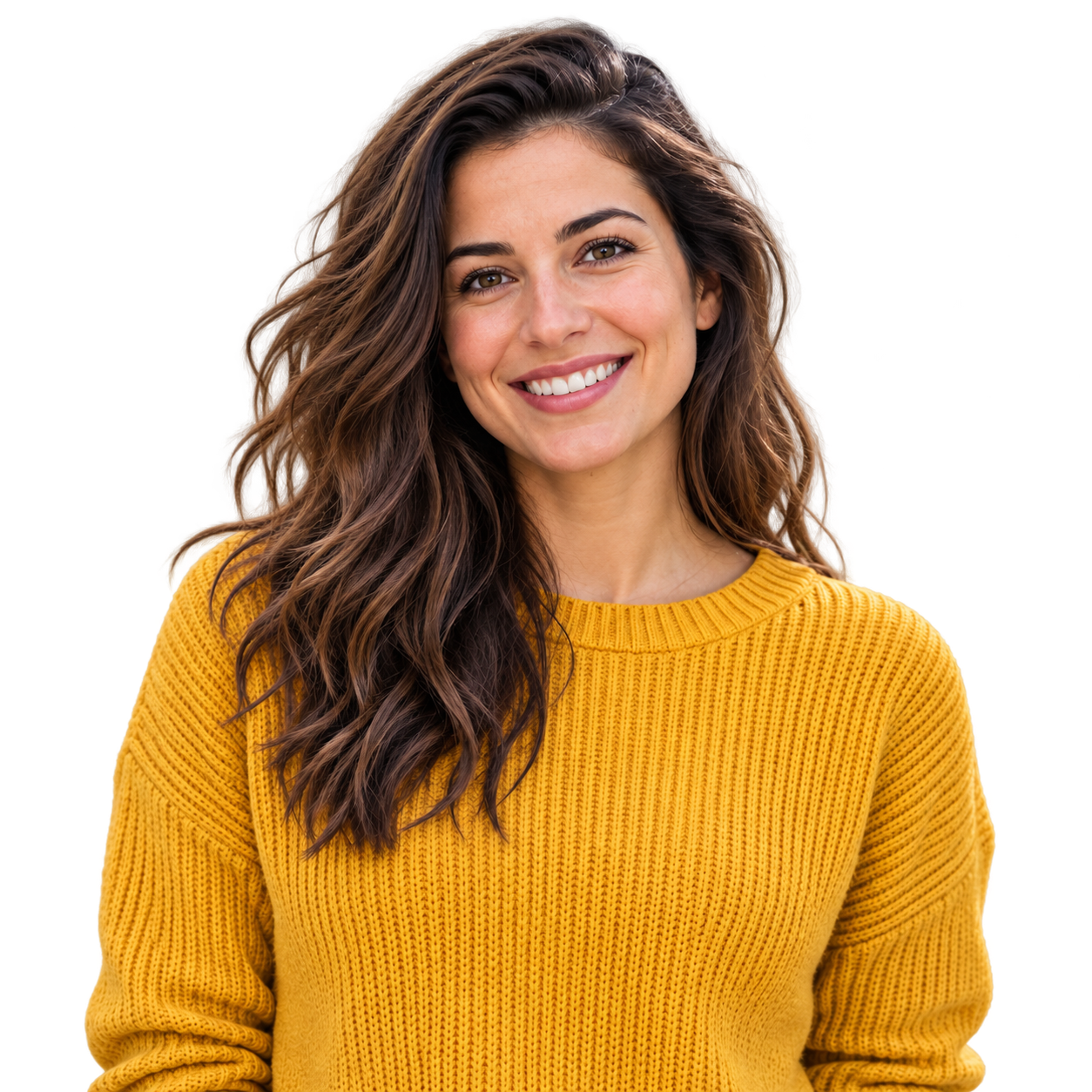 Color suave de perfil
Prepara fotos de producto para tu tienda
Comprueba asas, esquinas del envase y productos claros sobre vistas transparentes y blancas.
Quitar fondo de una foto de producto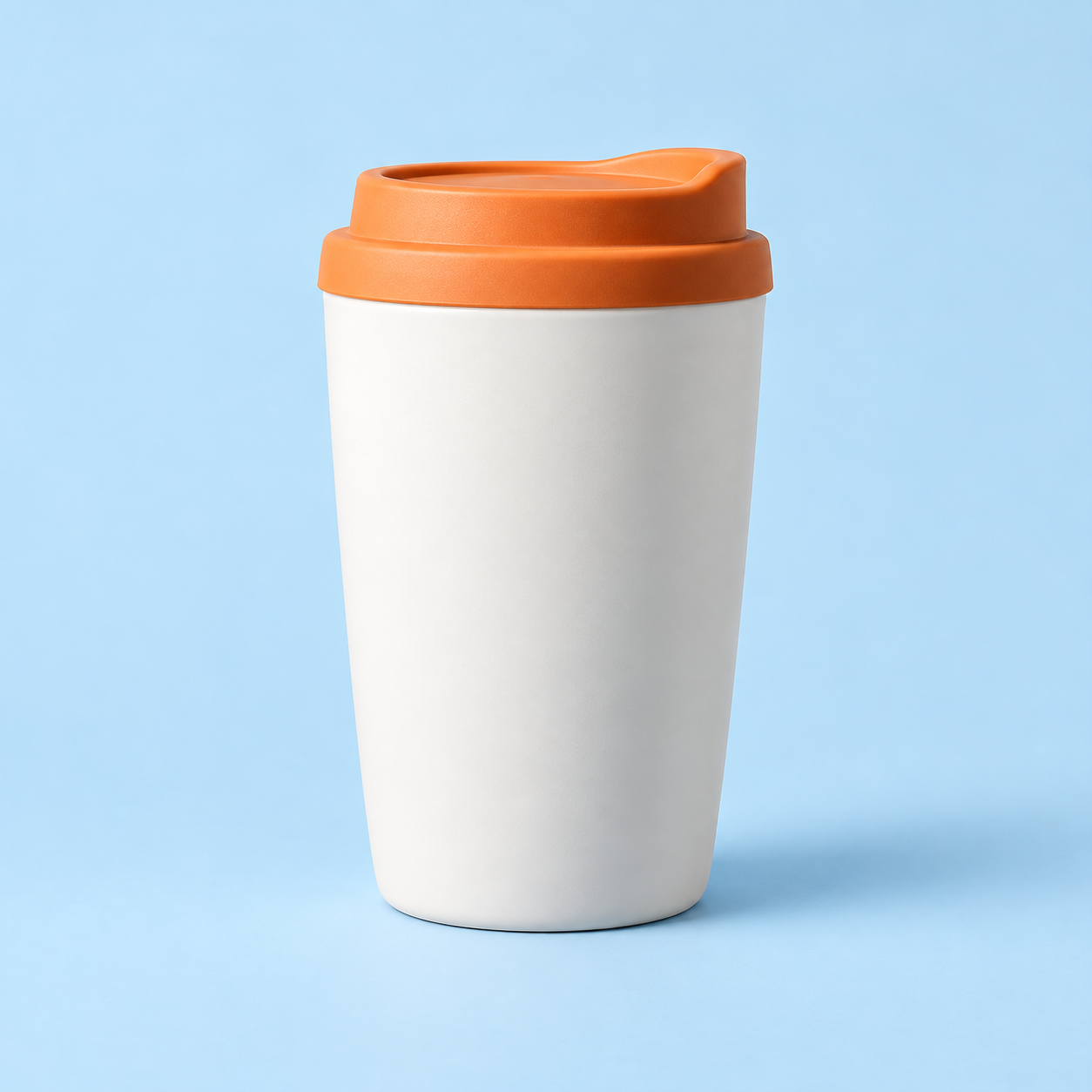
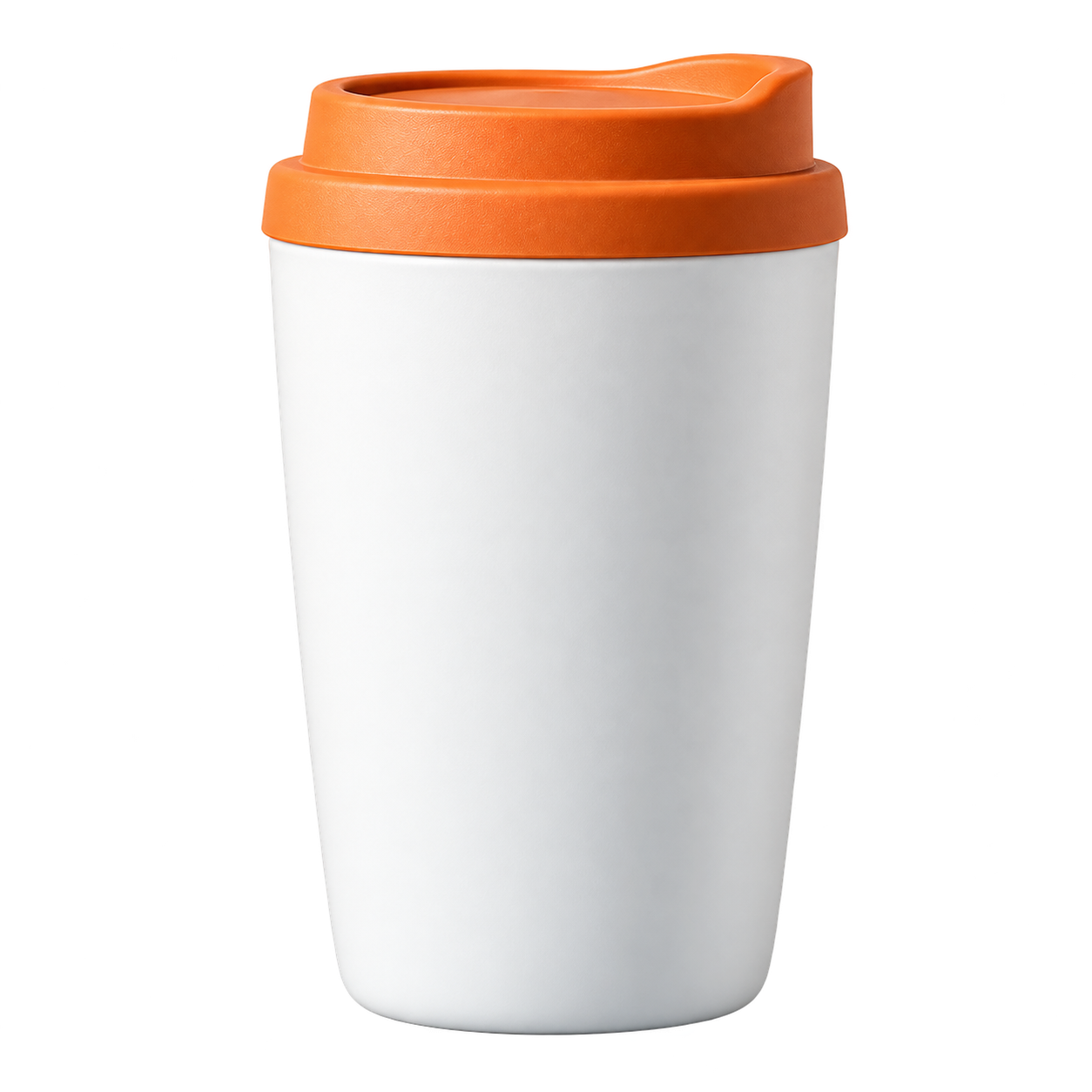 Color de catálogo
Conserva el pelo y las orejas
Usa un fondo con contraste para revisar pelo, bigotes y pequeños huecos alrededor del sujeto.
Quitar fondo de una foto de mascota
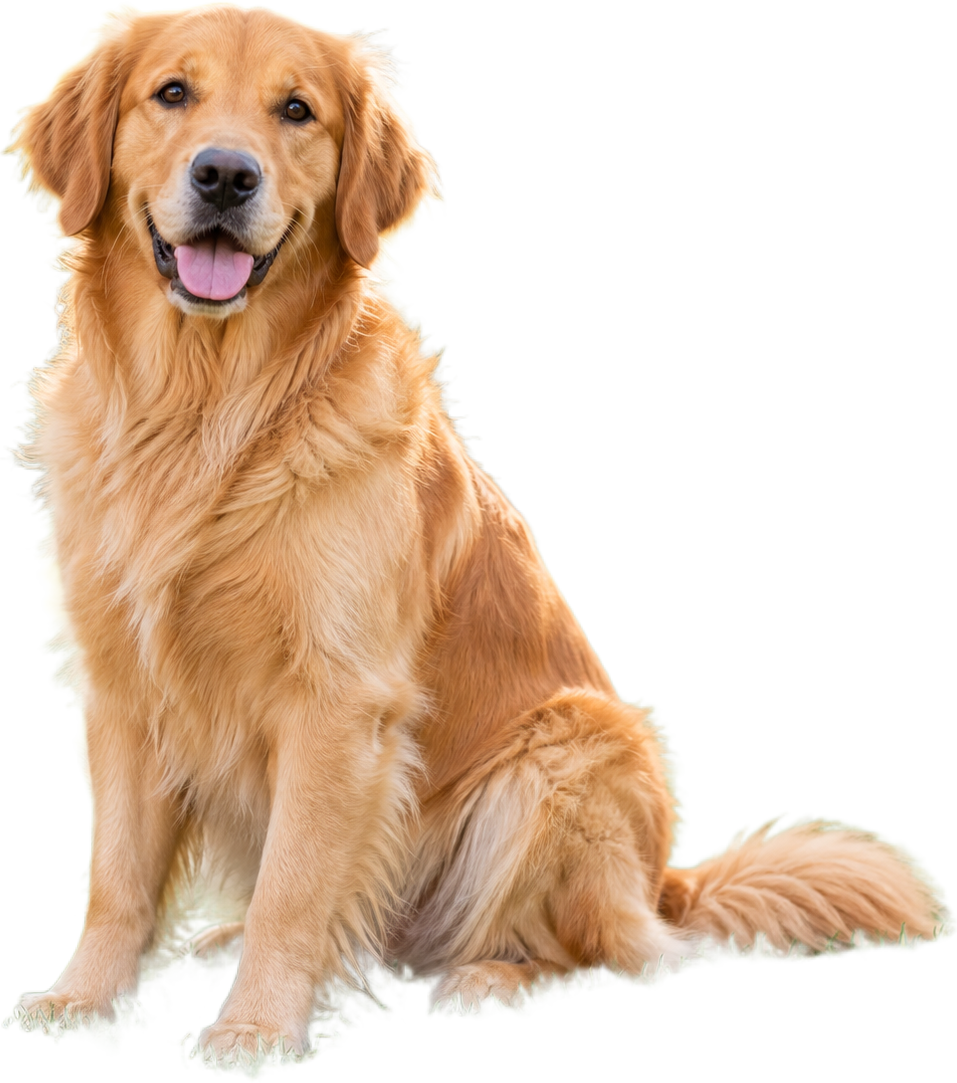 Fondo cálido para mascotas
Reutiliza mejor las imágenes de comida
Separa un plato o ingrediente de la escena para menús, publicaciones y recetas.
Quitar fondo de una foto de comida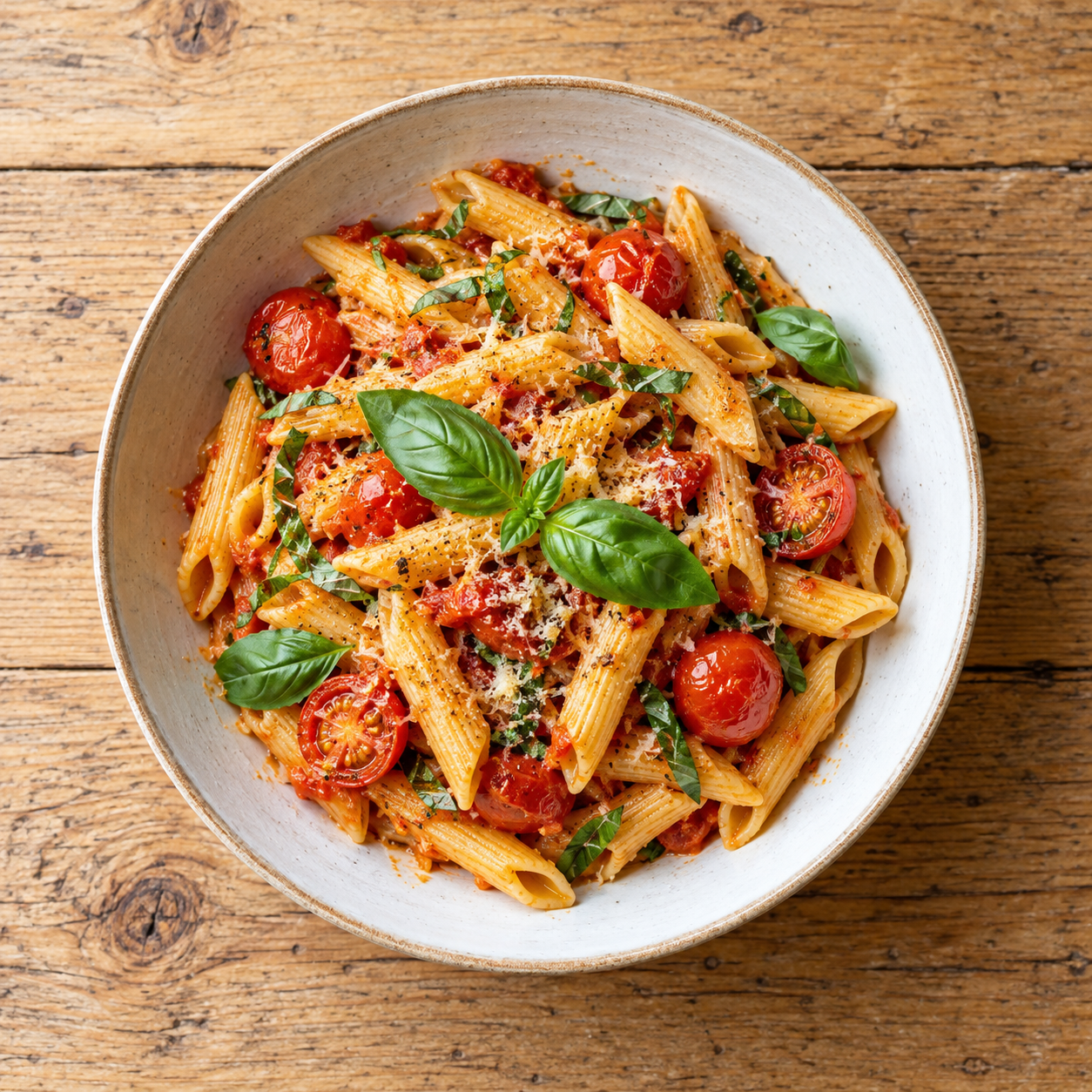
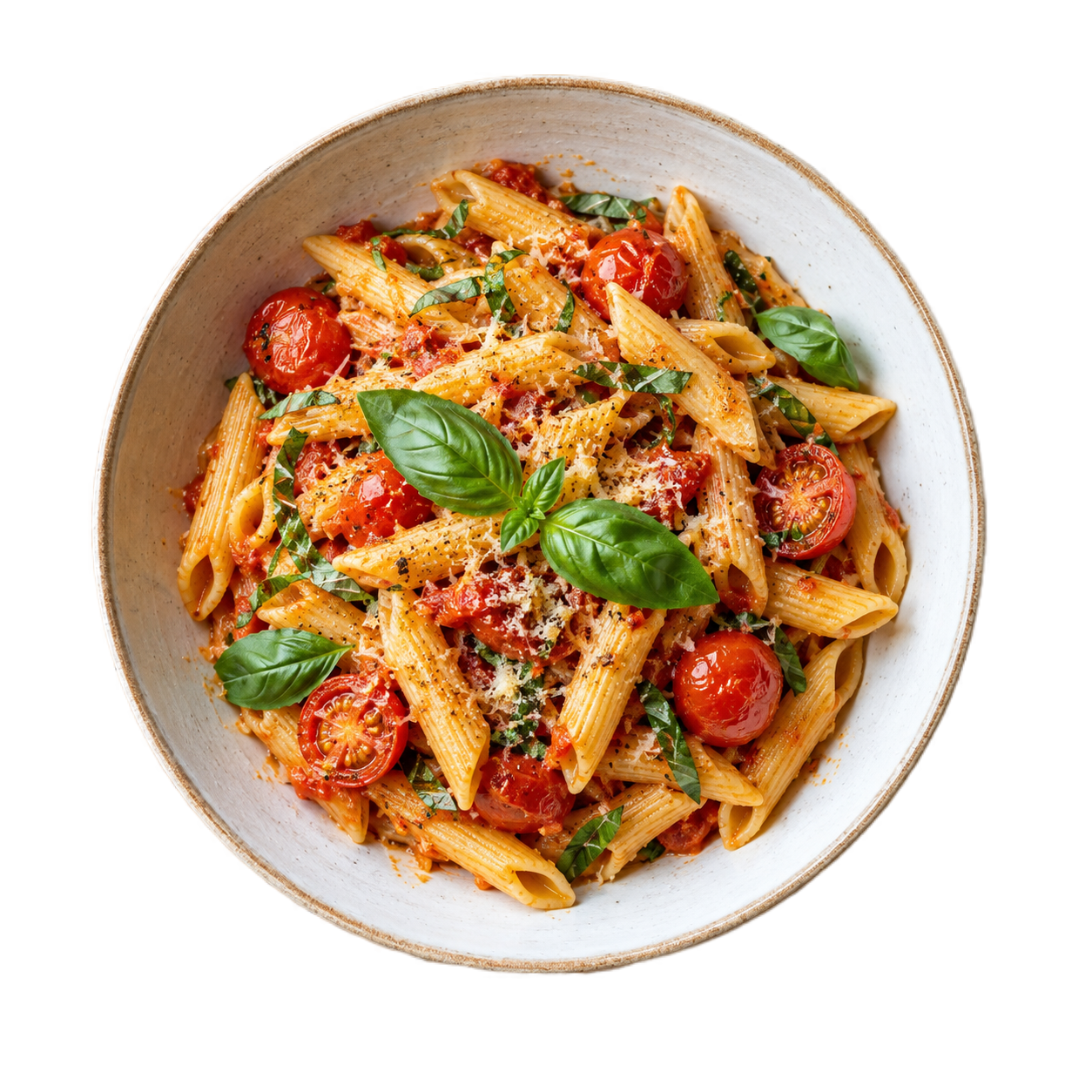 Color para menú
Convierte un logotipo en un recurso transparente
Revisa bordes de letras, iconos y líneas finas antes de colocarlo sobre un color o diseño nuevo.
Quitar fondo de un logotipo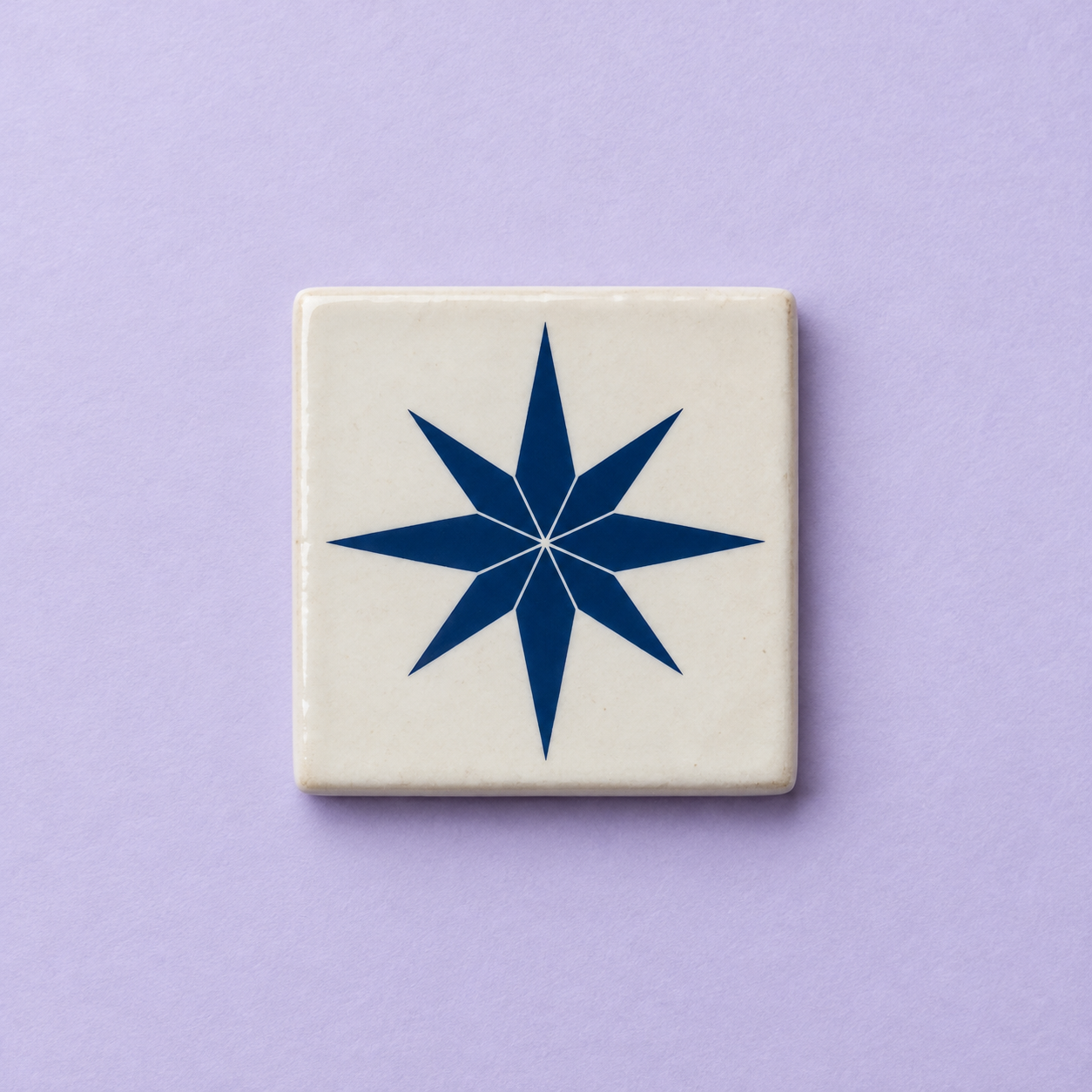
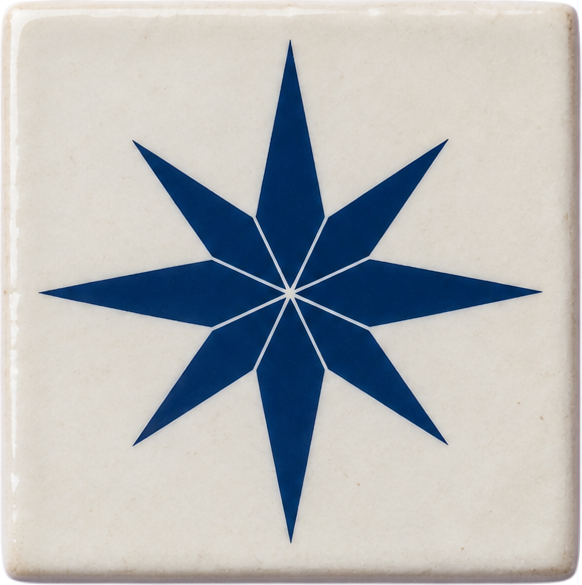 Color de marca
Prepare the file, then review the result
Every page starts from the same practical decision: what are you preparing, what edge needs checking, and where will the exported copy go next?
- 01
Upload a sharp portrait copy.
- 02
Run the browser background-removal preview.
- 03
Check hair, ears, shoulders and clothing edges.
Create a clean LinkedIn profile photo background
Use the answer that matches the file you are preparing, then open the tool when you are ready to test it.
How to remove a background from a LinkedIn photo
- Upload a sharp portrait copy.
- Run the browser background-removal preview.
- Check hair, ears, shoulders and clothing edges.
- Download the PNG, then crop it to the profile image dimensions you need.
What makes a good profile photo cutout?
A clear face, visible shoulders and contrast between the person and the original scene make the first preview easier to inspect. Busy backgrounds, backlighting and loose hair need a closer check.
Can I choose a new background for LinkedIn?
The preview lets you inspect the cutout on transparent, white, black or a custom color. A new background image or branded design belongs in the next editing step, after the mask has been checked.
Preguntas frecuentes
Respuestas breves sobre formatos, privacidad, salida y calidad de los bordes.
Can I remove a background from a LinkedIn profile picture?
Yes. Upload a portrait copy, review the cutout and crop the downloaded PNG for the profile layout you plan to use.
Will the tool crop the photo into a LinkedIn profile circle?
No. It removes the background. Crop and position the portrait in the next step so the face remains clear in the final profile layout.
How do I check hair around a profile photo?
Use the zoom control and switch between a light and dark preview. Hair and soft edges can show a halo on one color and look clean on another.
What size should my LinkedIn profile photo be?
Use the current LinkedIn image guidance when you crop the result. The background remover prepares the cutout but does not decide the final profile dimensions.
Can I use a colored background behind the profile photo?
Yes. Review the cutout on a solid color first, then add the final branded or neutral background in the next editing step.